1
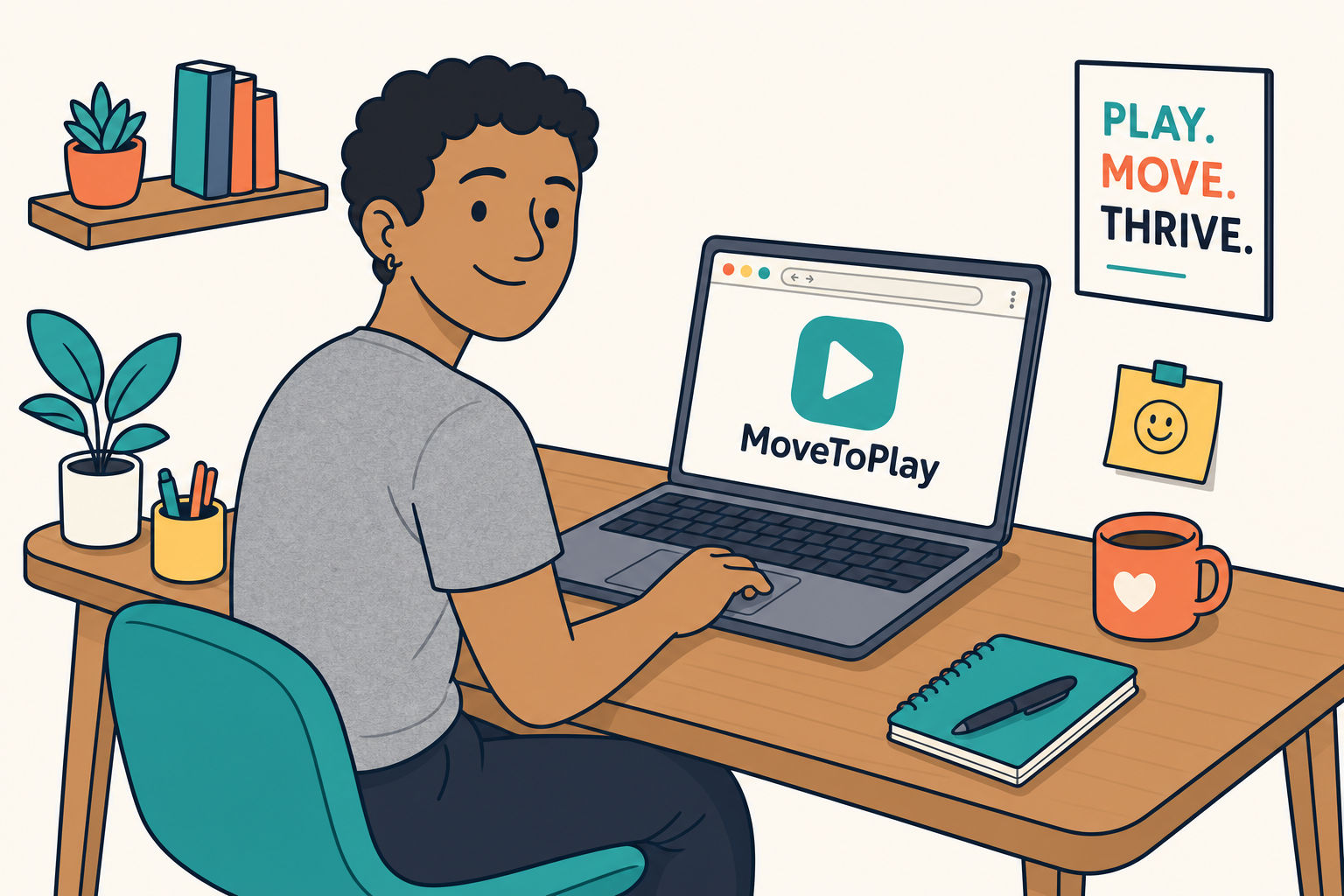
Open the game in a browser
Use Chrome or another modern browser on your laptop, then open MoveToPlayGames.
Choose the setup that works for your space. Your laptop camera sees your moves, and your body becomes the controller.
Get started in a clear, well-lit space with your whole upper body in view.
Use Chrome or another modern browser on your laptop, then open MoveToPlayGames.
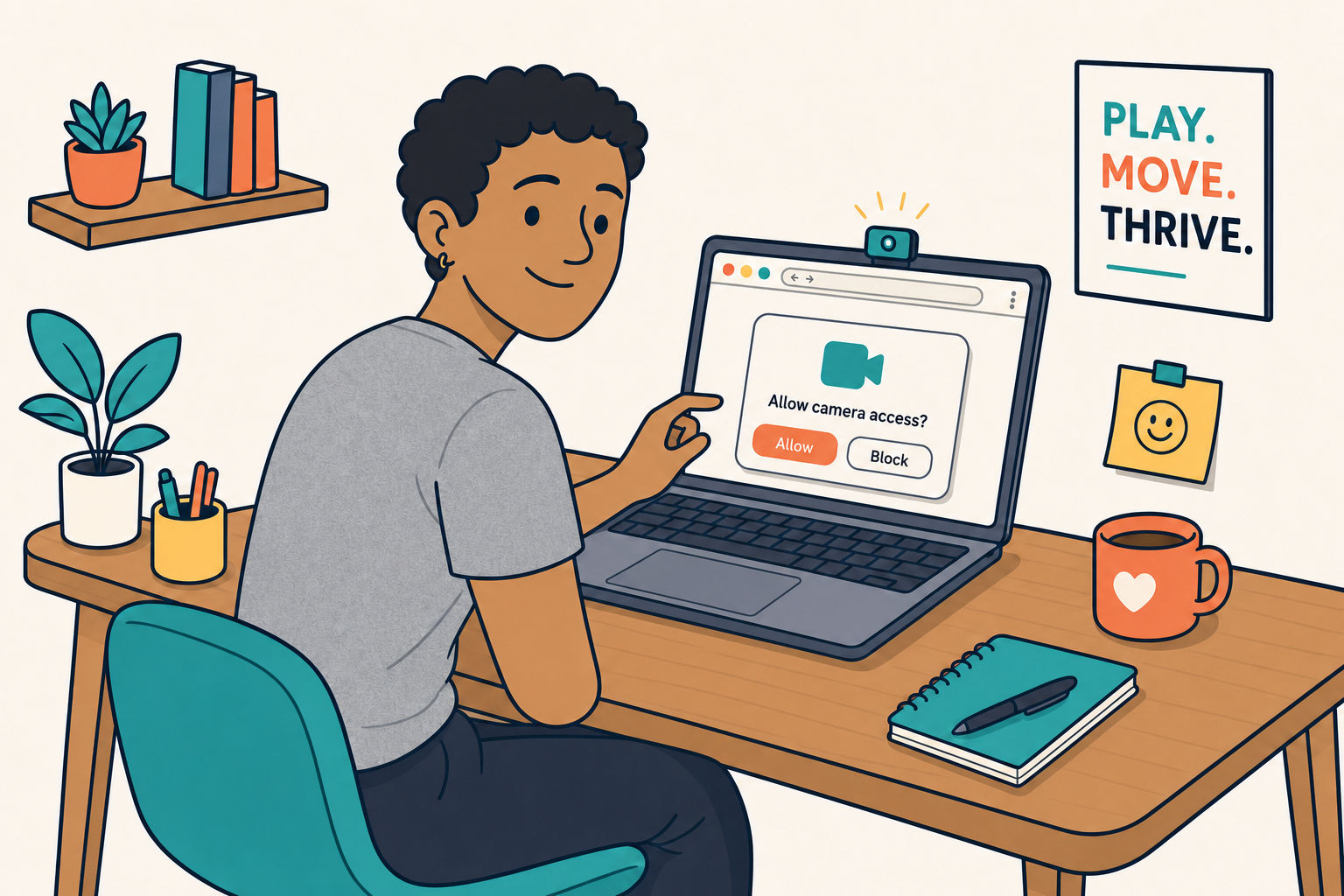
When your browser asks, choose Allow. The camera helps the game follow your movement.
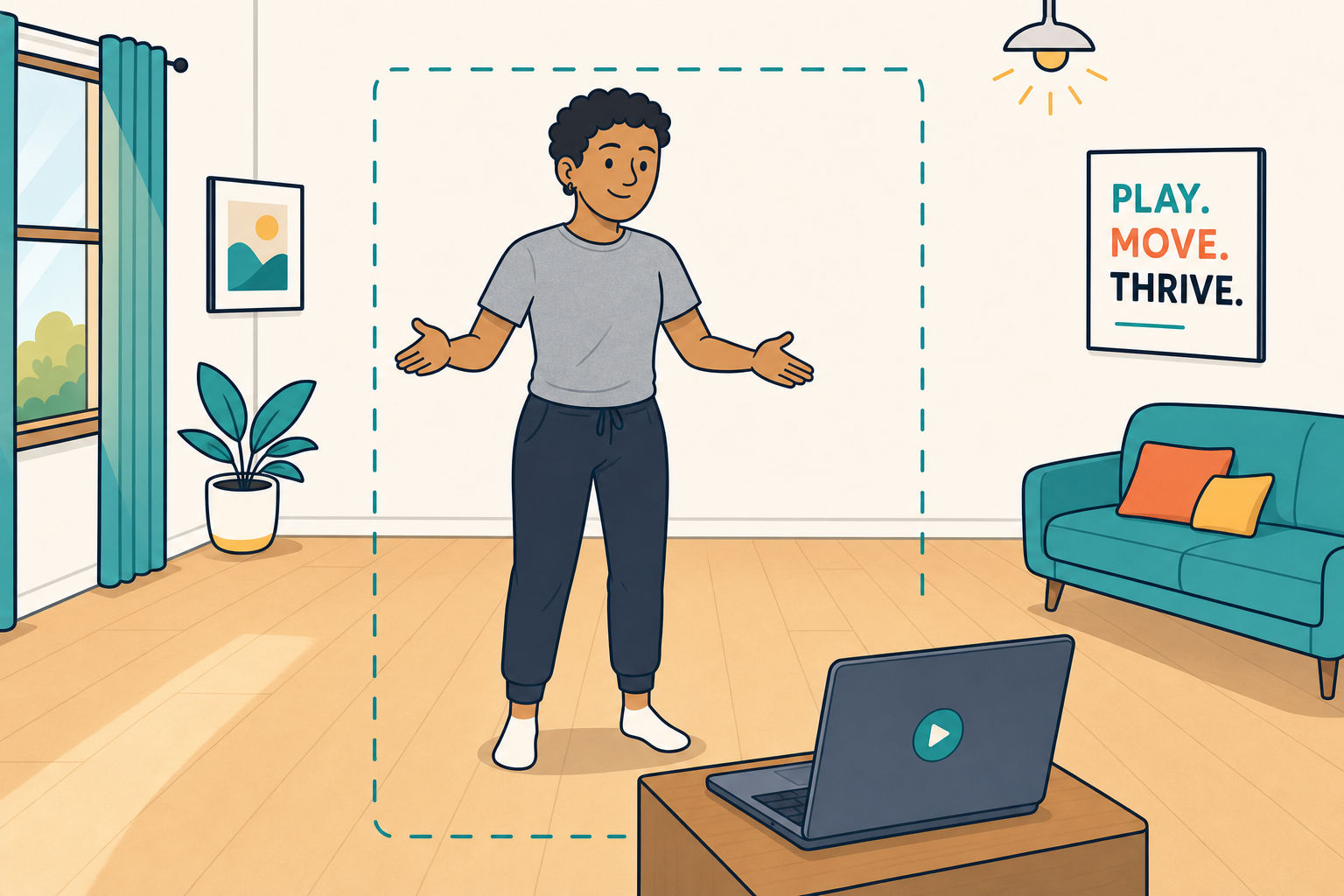
Put your laptop on a stable surface. Sit or stand where the camera can see your full upper body, with good light and clear space around you.
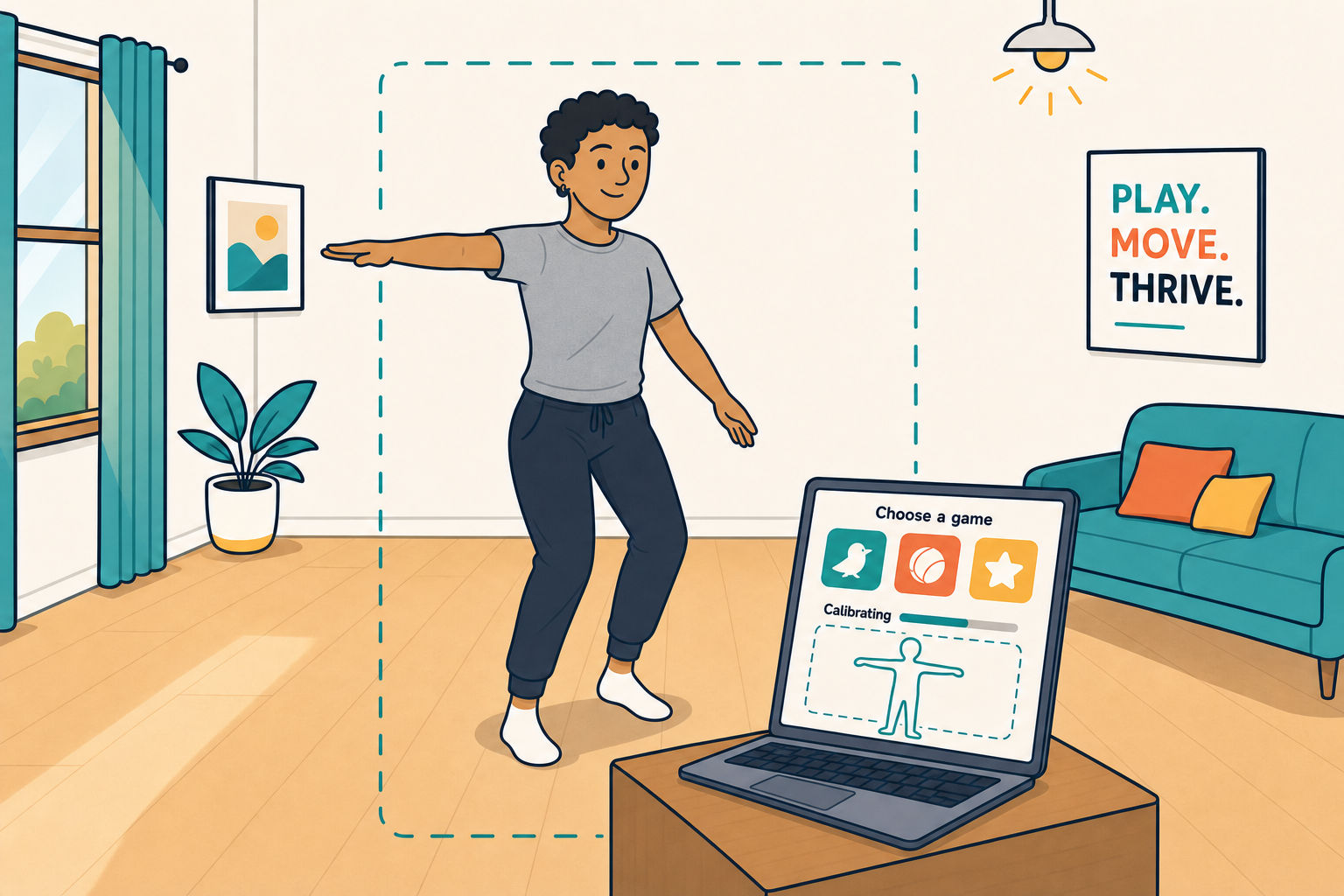
Choose a game and level, then follow the on-screen calibration steps. They help the game learn your move.
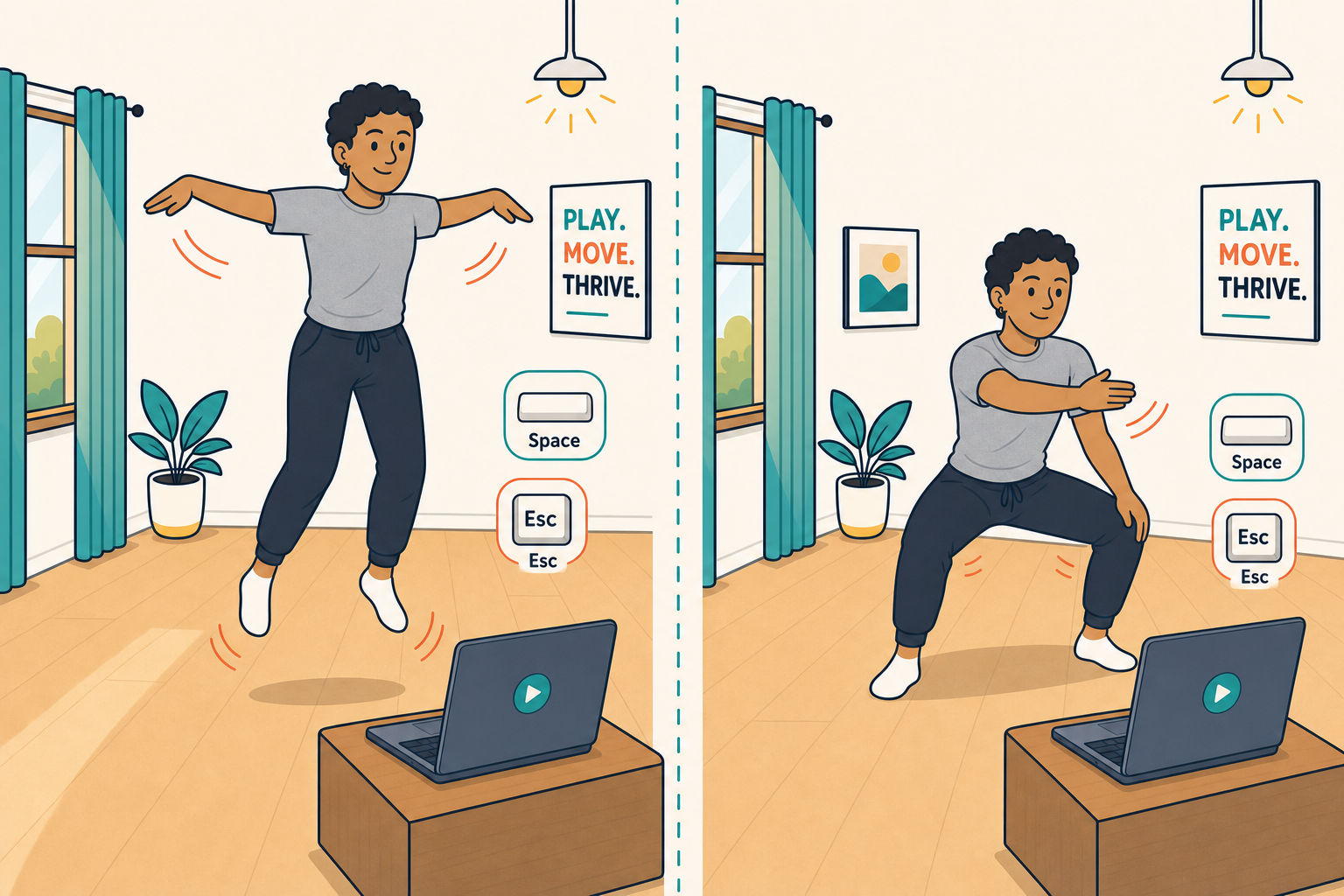
Flap your arms, jump, swipe, or squat—each game tells you which move to use. Keep facing the camera while you play.
⌨️ Testing without a camera? Press Space to simulate an action. Press Esc any time to leave a game.
Use your laptop for the camera and controls while the TV gives everyone a bigger view.
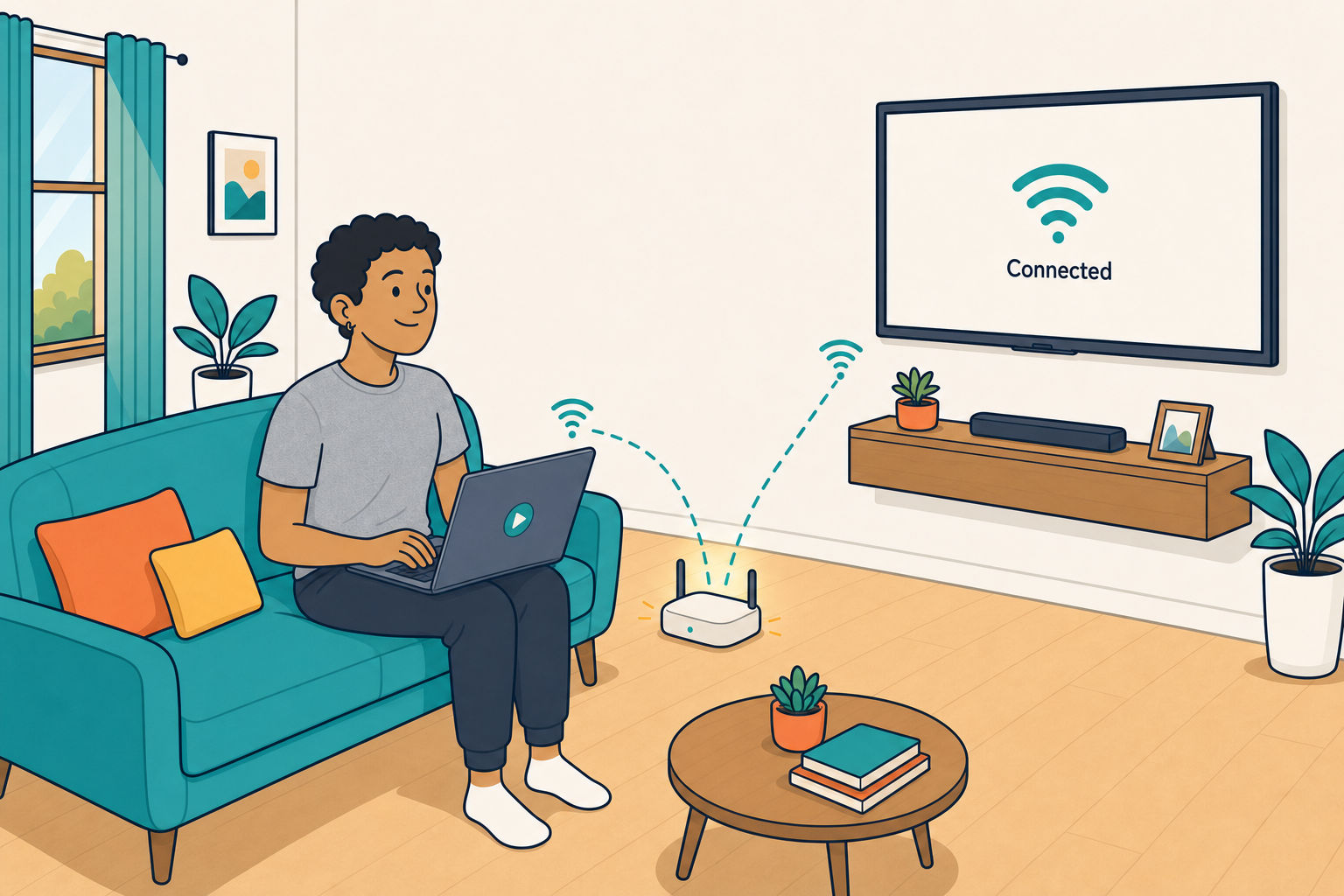
Make sure your laptop and smart TV are on the same Wi-Fi network. Turn on the TV and enable its screen-mirroring feature.
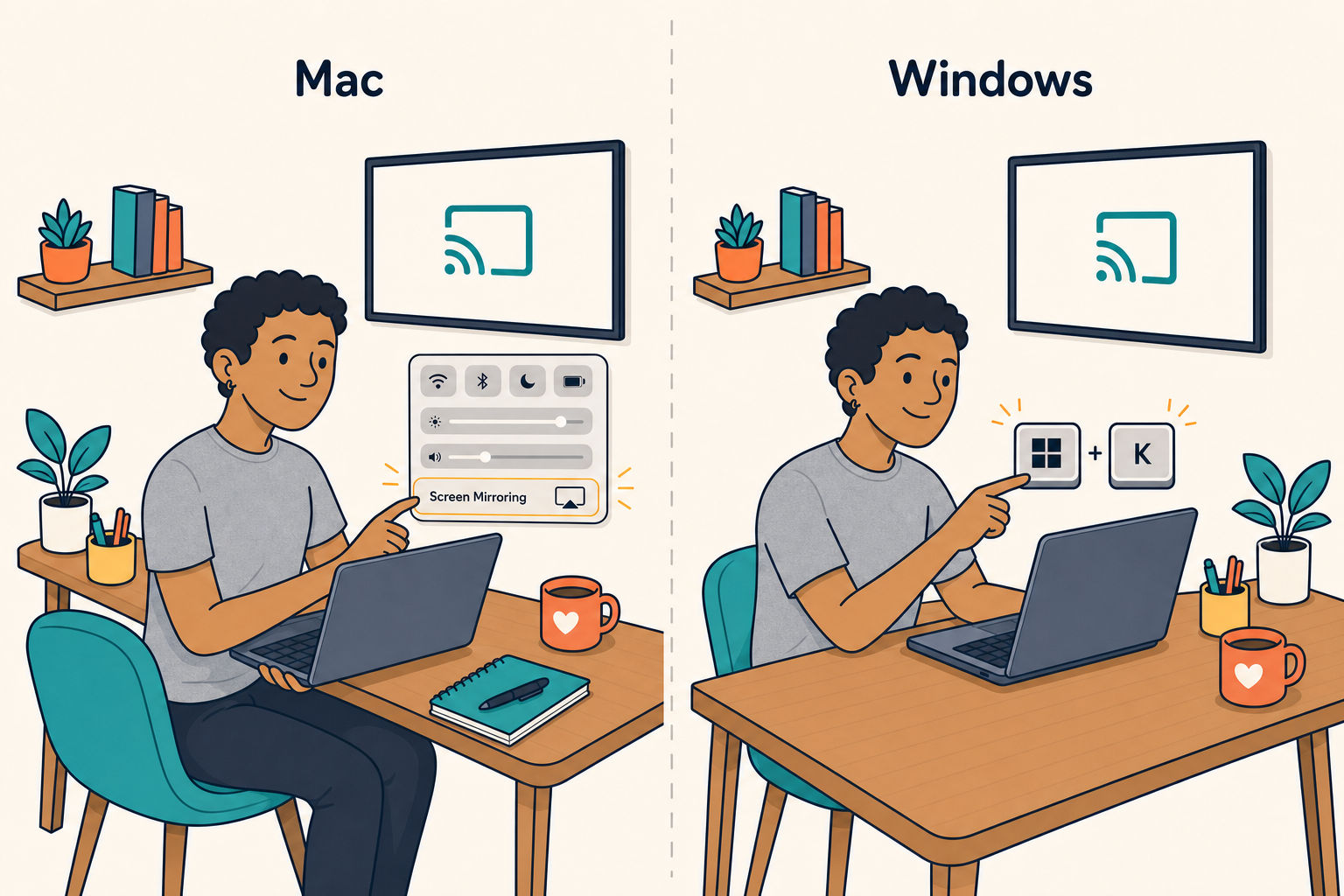
Choose Mirror or Duplicate so the TV shows exactly what’s on your laptop.
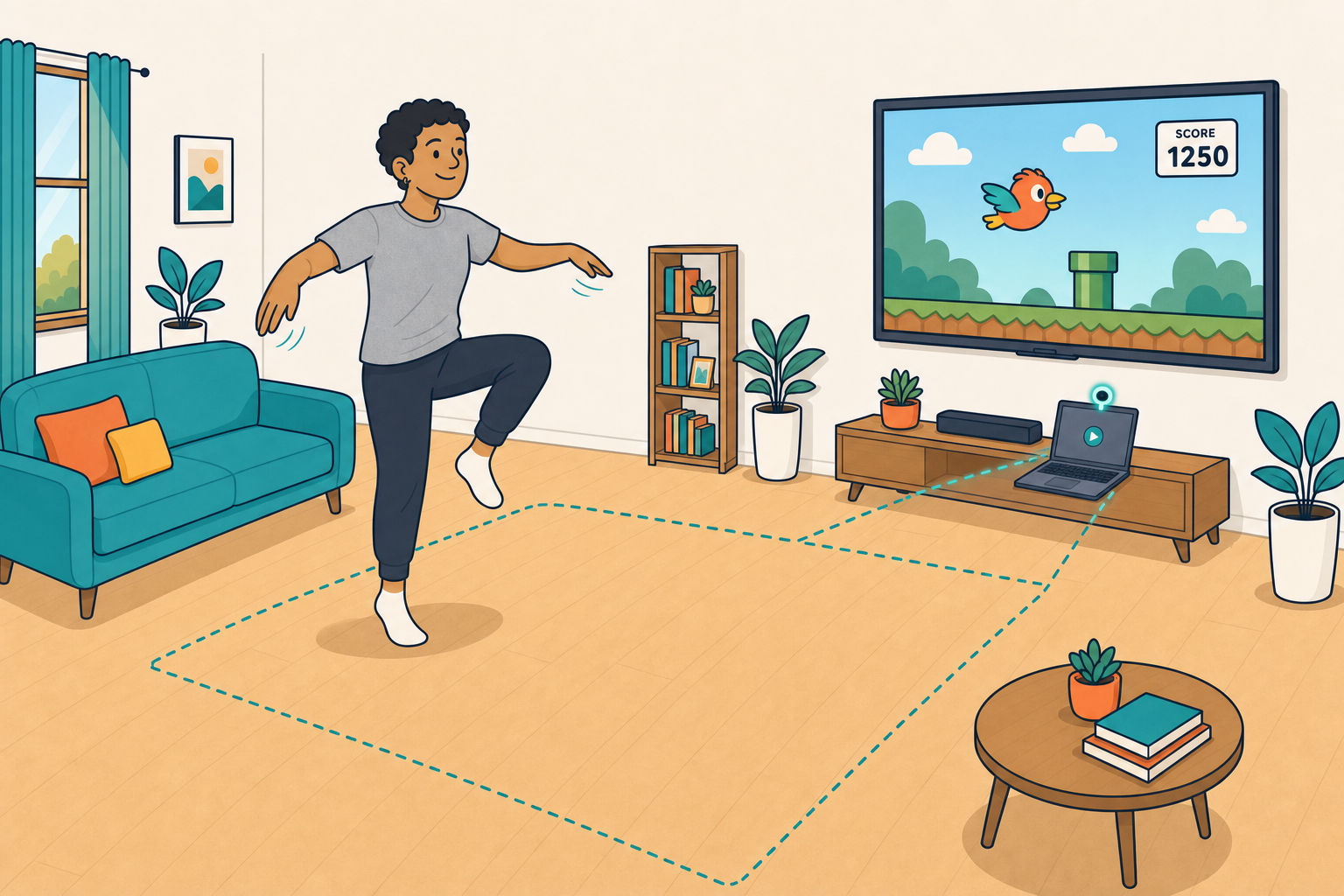
Open the game and allow camera access on the laptop—the TV only displays it. Place the laptop near or below the TV, facing the play area, then stand far enough back to move safely. Calibrate and have fun!
Pick a game, make some room, and turn screen time into move time.
▶ Start playing free